

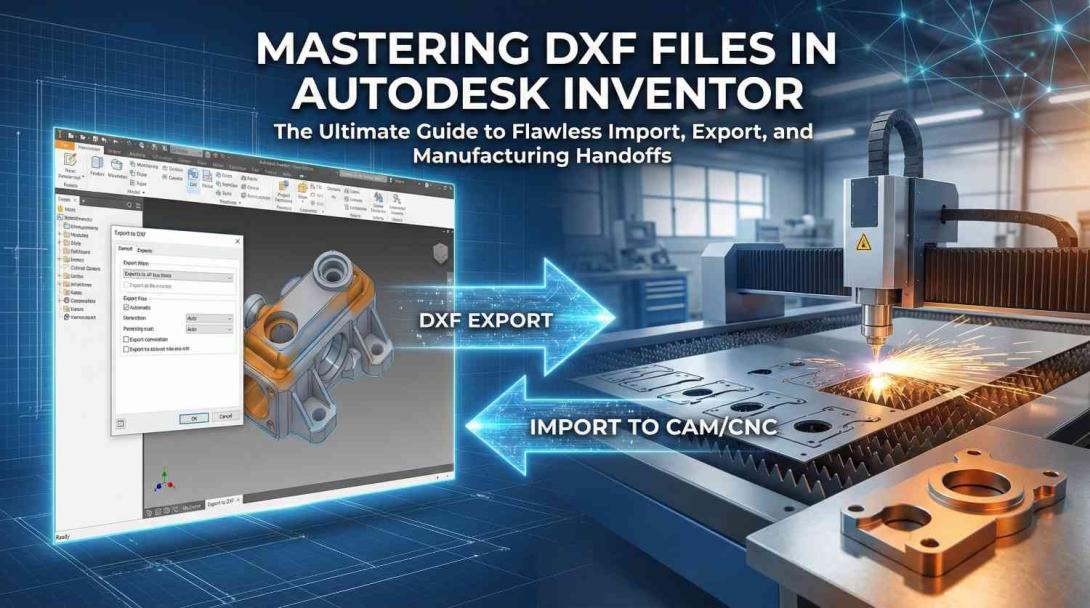
Mastering DXF Files in Autodesk Inventor: Your Ultimate Guide to Flawless Import, Export, and Manufacturing Handoffs
Data interoperability is the backbone of modern CAD workflows. As engineers and designers, nothing is more frustrating than broken geometries, disastrous scaling issues, and software incompatibilities when collaborating across different platforms. The solution to these headaches lies in mastering the Drawing Exchange Format (DXF) within Autodesk Inventor.
Whether you are communicating with external contractors, preparing flat patterns for a laser cutter, or laying the foundation for a seamless fabrication handoff, understanding the nuances of DXF files bridges the crucial gap between design and physical production. If you are working with older components that lack original digital files, you might first need to use Reverse Engineering Services to scan and recreate the physical part before worrying about CAD exports.
What Exactly Are DXF Files?
Introduced by Autodesk in 1982, the DXF file format was designed specifically to enable interoperability between AutoCAD and other computer-aided design programs. A DXF file contains crucial vector image data, including:
- 2D geometry (lines, arcs, circles)
- Text information
- Layer information
These files are essential for sharing design data with clients using mixed software environments, importing legacy drawings, and creating CNC toolpaths from 2D profiles. However, because DXF was designed for openness, not all features from complex DWG files were included in the DXF specification, so proper import and export settings are critical to success.
How to Import DXF Files into Autodesk Inventor
Bringing 2D geometry into Inventor accurately sets the stage for a successful 3D model. Here are the two primary methods:
Method 1: Creating a New Sketch. This method is ideal when using a 2D DXF profile as the foundation for a new 3D feature.
- Create a new part file in Inventor and select a work plane (e.g., the XY plane).
- Navigate to the "Sketch" tab and click "Insert DXF".
- Browse for your file. In the Import dialog box, select the correct units, choose your layers, and set the import scale.
- Pro-Tip: Uncheck “Import as reference” if you want to be able to edit, constrain, and extrude the geometry later.
Method 2: Using the "Open" Command. This works best for converting a DXF file directly into an Inventor part.
- From the start screen, select "Open" and change the file type to “DXF Files (*.dxf)”.
- Choose your import options (units and layers) and select “Sketch” as the mapping method.
How to Export DXF Files from Autodesk Inventor
Exporting is where precision matters most, especially when the next step is the shop floor.
Method 1: Exporting a Sketch Perfect for sending custom 2D profiles (like gaskets) to a laser cutter. Simply right-click the sketch in the browser tree, select “Export DXF/DWG,” and configure your version, layers, and units.
Method 2: Exporting from a Drawing. If you need to export complete, formatted engineering drawings with dimensions and annotations, go to "File > Save As," select DXF as the format, and click the "Options" button to configure layer mapping and scale settings.
Method 3: Sheet Metal Flat Patterns & Batch Exports. For sheet metal, right-clicking the flat pattern lets you export a heavily optimized DXF that preserves essential bend allowances. For larger projects, Inventor’s batch export capability (found under Tools > Export > Multiple) can process multiple files simultaneously.
Best Practices & Troubleshooting Common Issues
To ensure your DXF handoffs are flawless, keep these golden rules in mind:
- Units, Units, Units: The number one cause of scaling disasters is mismatched units. Always verify whether you are working in Millimeters or Inches before clicking export.
- Version Compatibility: Exporting a file in a format newer than the recipient's software can handle will cause errors. When in doubt, older formats like AutoCAD 2000 or R14 offer the greatest compatibility with legacy CNC machines.
- Clean Geometry: Before exporting, purge unused elements, remove overlapping lines, and utilize the "Simplify Splines" option if the target CNC machine struggles with complex curves.
- Missing Geometry? Check if the entities were on layers that were excluded during the import/export process.
Practical Applications: The CNC Workflow
DXF files are the lifeblood of CNC manufacturing workflows. A typical seamless lifecycle looks like this:
- Design your part in Inventor.
- Create a sketch representing the precise cutting profile.
- Export the sketch as a clean DXF file.
- Import the DXF into the CAM software to generate toolpaths and G-code.
- Fabricate the part with minimized lead times and reduced risk of costly material waste.
Conclusion
Mastering DXF file import and export in Autodesk Inventor significantly enhances your design flexibility and reduces collaboration friction. By understanding layer management, unit scaling, and flat pattern exports, you can eliminate the costly errors that often occur between the design office and the manufacturing floor.
Ready to streamline your CAD workflow and master these techniques? Read our full, step-by-step DXF Files in Autodesk Inventor: A Complete Import and Export Guide for deeper technical insights and troubleshooting tips.