

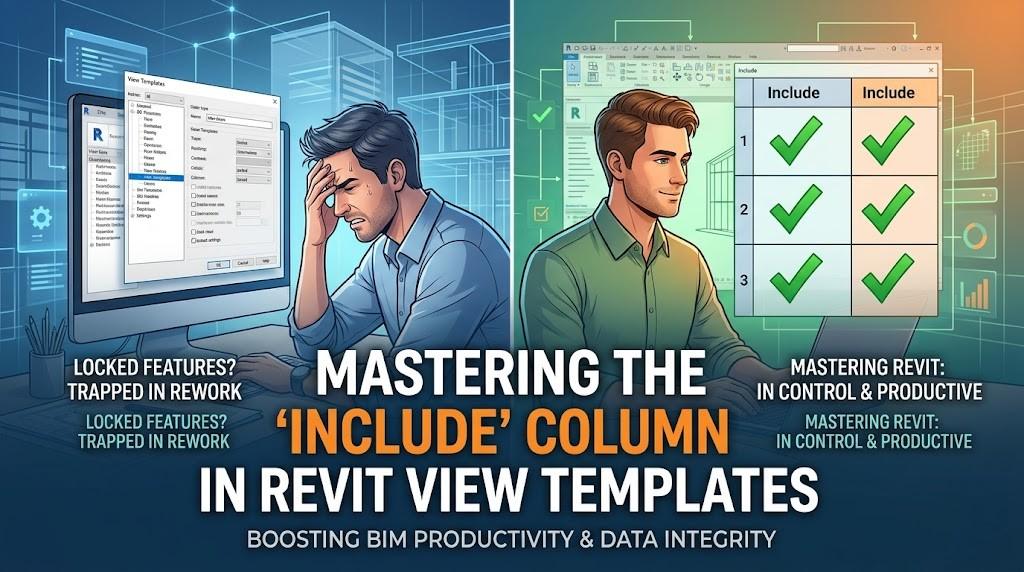
Did you know that AEC professionals spend nearly 35% of their time on non-value-added tasks, including manual rework and fixing documentation inconsistencies? In a high-stakes BIM environment, every minute spent toggling "Visibility/Graphics Overrides" for the hundredth time is a minute stolen from actual design innovation. While most Revit users understand the basics of View Templates, there is one specific area that remains a source of frequent frustration and "locked" settings: the 'Include' column.
Understanding this single column is the difference between a rigid, frustrating workflow and a fluid, high-performance digital practice.
The Power of Choice: Why the 'Include' Column Matters
In Revit, a View Template is often viewed as an "all or nothing" deal. You apply it, and suddenly, half your properties are greyed out. This happens because, by default, Revit assumes you want the template to control every single aspect of the view.
The 'Include' column acts as the gatekeeper. By checking or unchecking boxes in this column within the View Template dialog, you decide exactly which parameters the template "owns" and which ones the user can still modify manually in the Properties Palette.
For instance, a 2024 industry survey noted that standardization is the #1 driver for BIM ROI, but over-standardization often leads to "workarounds" by frustrated staff. Mastering the 'Include' column allows you to standardize the "heavy hitters" (like Model Categories) while leaving the "flexible" items (like Detail Level) open for project-specific needs.
Strategic Control: To Check or Not to Check?
When setting up your Revit project standards, you shouldn't treat the 'Include' column as a "Select All" button. Instead, consider these three strategic categories:
1. The Non-Negotiables (Always Include)
Certain elements define the visual language of your firm. V/G Overrides (Model, Annotation, and Links) should almost always be included. This ensures that your HVAC ducts are always blue and your walls are always a specific weight across a 500-sheet set. If you are just getting started with these settings, it’s helpful to revisit the basics of what is a view template and how to create it in Revit to build a solid foundation.
2. The Contextual Variables (Often Exclude)
View Scale and Detail Level are prime candidates for being "unincluded." Why? Because a Floor Plan might need to be shown at 1:100 on a general arrangement sheet but 1:50 for a localized enlarged plan. If "Scale" is included in the template, you’re forced to create a brand-new template just to change the size. By unchecking 'Include' for Scale, one template can serve both views perfectly.
3. The "Phase" Trap
Phase Filter and Phase are tricky. In massive infrastructure projects or complex renovations, keeping these "Included" prevents accidental data loss where a user might inadvertently view "Existing" elements as "New Construction." However, for smaller residential projects, leaving these unchecked allows for quicker toggling during design iterations.
Actionable Takeaways for BIM Managers
To optimize your Revit workflow today, try these three steps:
- Audit Your Templates: Open your most-used View Template and look at the 'Include' column. If "Scale" or "Crop Region" is checked, ask yourself: Is this restriction helping us, or just creating more templates?
- The "Hybrid" Approach: Create "Base Templates" that only include Visibility/Graphics and "Final Delivery Templates" that include everything, including Scale and Title Blocks.
- Educate the Team: Ensure your architects and engineers know that a "greyed out" button in the Properties Palette isn't a Revit bug—it’s a controlled parameter in the 'Include' column.
The Future of Data-Driven Documentation
As the AEC industry moves toward ISO 19650 compliance and more rigorous digital twin handovers, the "locked features" of Revit are becoming less about restriction and more about data integrity. Research from consulting firms like McKinsey suggests that digital transformation in construction could boost productivity by 14-15%.